
System Requirement
- PC Operation System: Windows XP, Windows 7, Windows 8 (32 / 64bit), Windows 10 (32 / 64bit)
(Require Administrator privilege) - Weintek HMI with EasyAccess 2.0 feature activated (Eligible HMI models)
- Internet Connection
- EasyBuilder Pro V4.10.05 or later
- iPad: iOS 7.0 or above
- Android: V4.1.2 or above
Installation
1. Download the setup.exe file from EasyAccess 2.0 homepage and open it.
Select the language for the installation process, and then click [Next].
If there is a previous version of EasyAccess 2.0 on the PC, please remove it before installation.
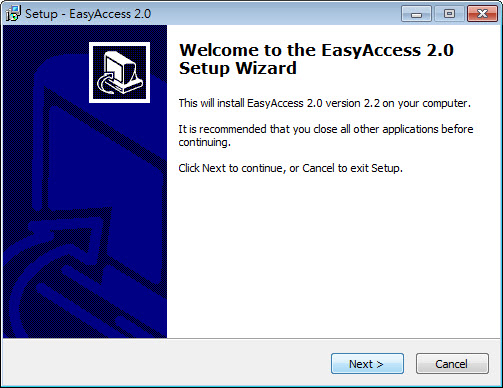
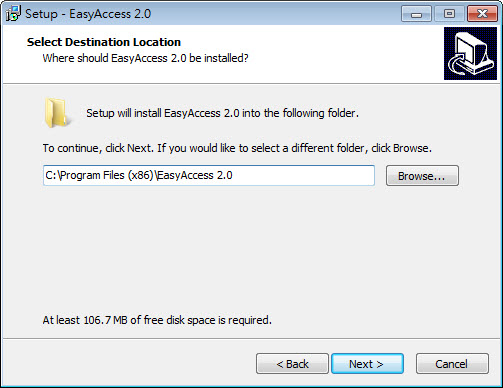
2. Select a folder for EasyAccess 2.0 installation, or use the default folder. Click [Next].
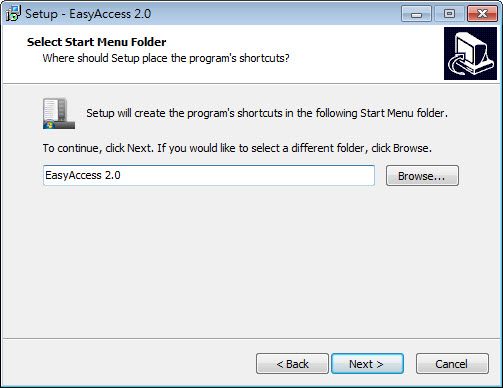
3. Select a start menu folder, or use the default folder. Click [Next].
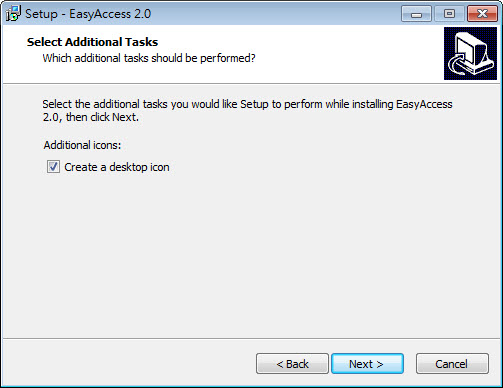
4. Select additional tasks, for example: [Create a desktop icon]. Click [Next].
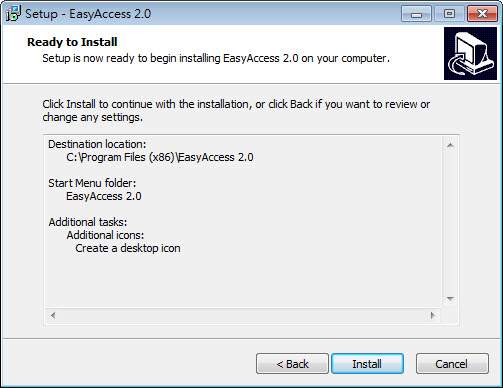
5. Confirm all setting. To change the setting, click [Back]. To start installation, click [Install].
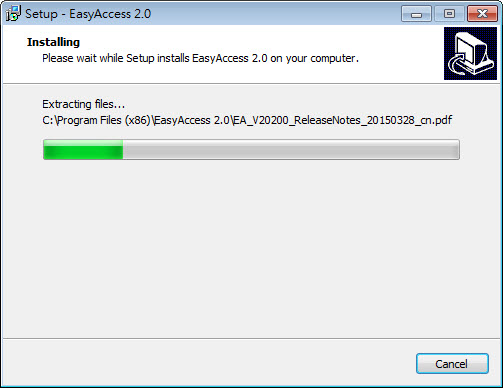
6. Installation progress.
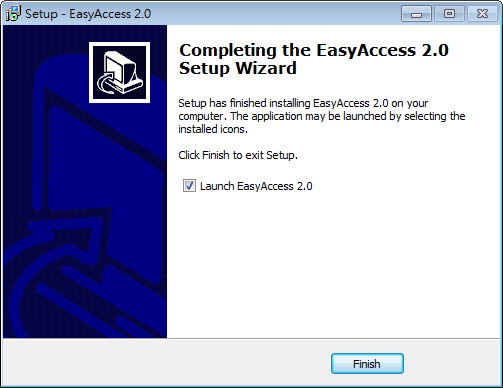
7. Click [Finish] to complete the installation.
Here is a list of notable files in the installation folder:
| File name | Description |
| cMT Viewer | The PC application for accessing a cMT HMI. |
| EasyAccess 2.0 | The main program used to establish remote connection to an HMI. |
| gui_30 | An essential component when using HMI Viewer to monitor a remote HMI. |
| PC Activator | Application for activating EasyAccess 2.0 for HMI on the network. |
| EA_V2xxxx_ReleaseNotes | Release notes documenting important changes of EasyAccess 2.0 to date. |
Comments
1 comment
How to connect ethernet cable in Wi fi router
Please sign in to leave a comment.